> ## Documentation Index
> Fetch the complete documentation index at: https://monopad.mintlify.site/llms.txt
> Use this file to discover all available pages before exploring further.
# Exporting Activity
> Get your activity data out of Strava, Garmin, and more
## Export from Strava
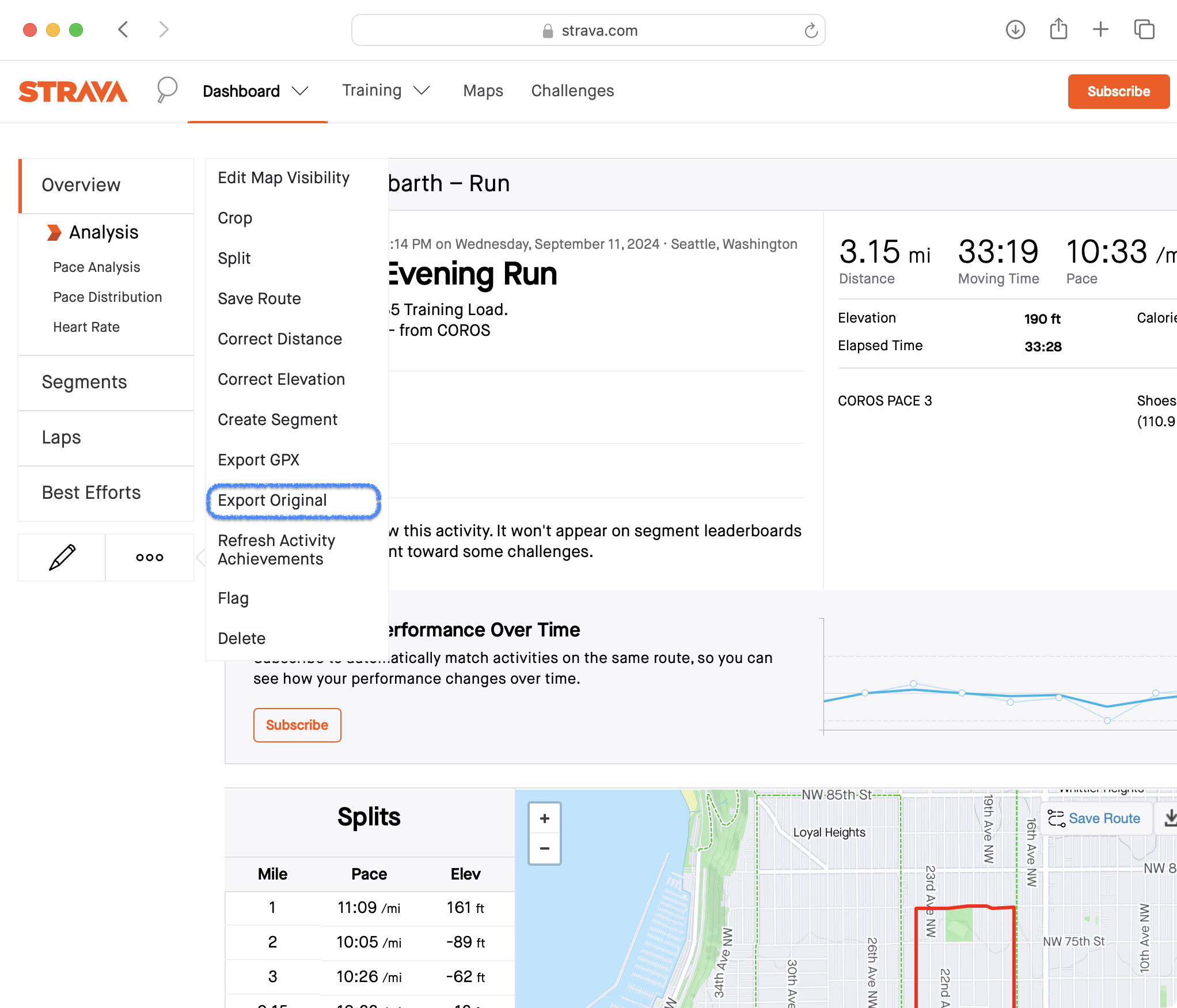
Navigate to one of your Activity pages and click the More menu on the activity you want to export.
From the More menu, choose 'Export Original' and download the file.
 The activity file will be downloaded to your computer in whatever format it
originally uploaded. In many cases, the original will be in FIT (Flexible
and Interoperable Data Transfer) format.
Upload the FIT file to Monopad.
## Export from Garmin
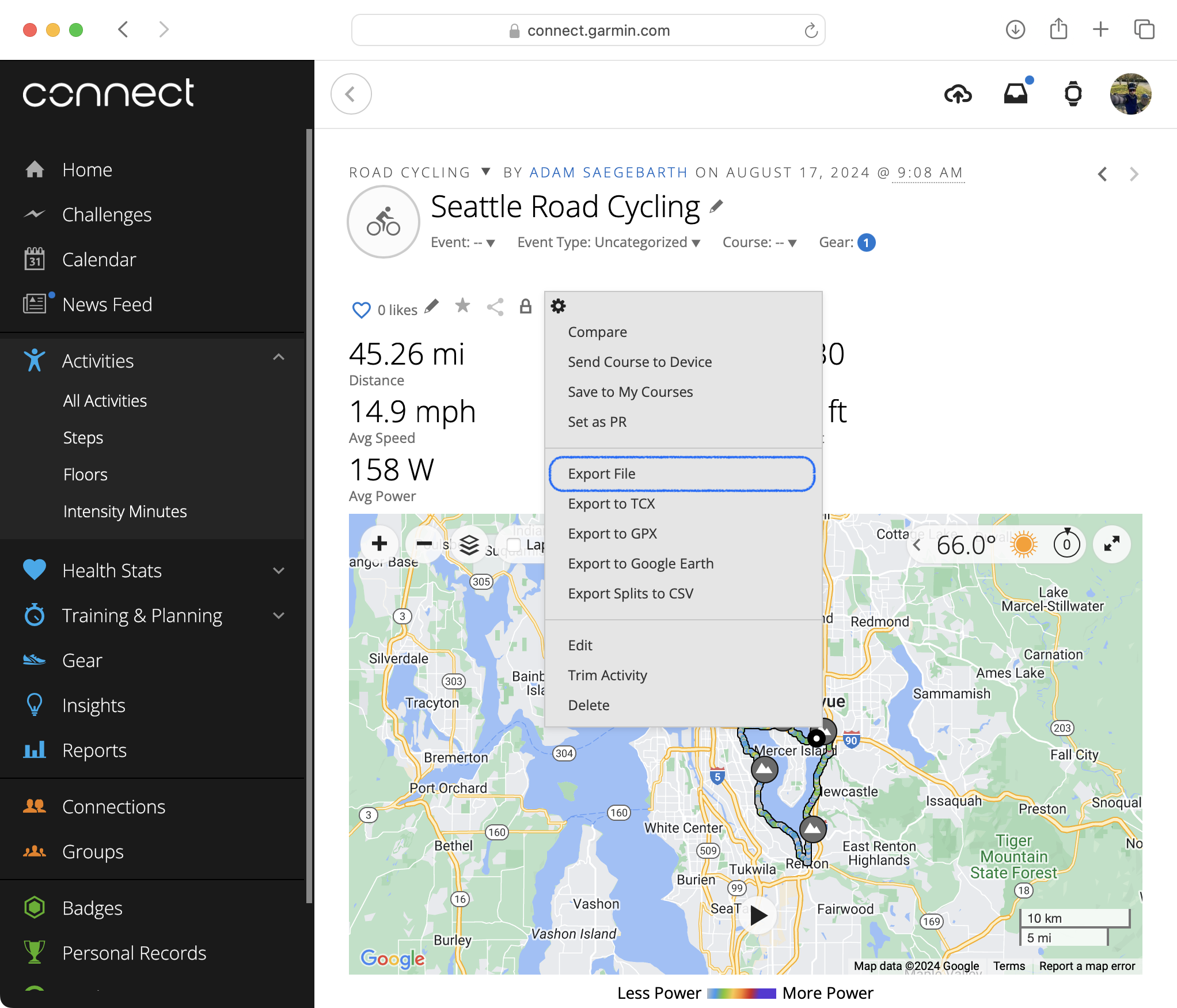
Click the icon on the activity you
want to export.
Choose 'Export File' and download the FIT file.
The activity file will be downloaded to your computer in whatever format it
originally uploaded. In many cases, the original will be in FIT (Flexible
and Interoperable Data Transfer) format.
Upload the FIT file to Monopad.
## Export from Garmin
Click the icon on the activity you
want to export.
Choose 'Export File' and download the FIT file.
 Upload the FIT file to Monopad.